Cool Orca App

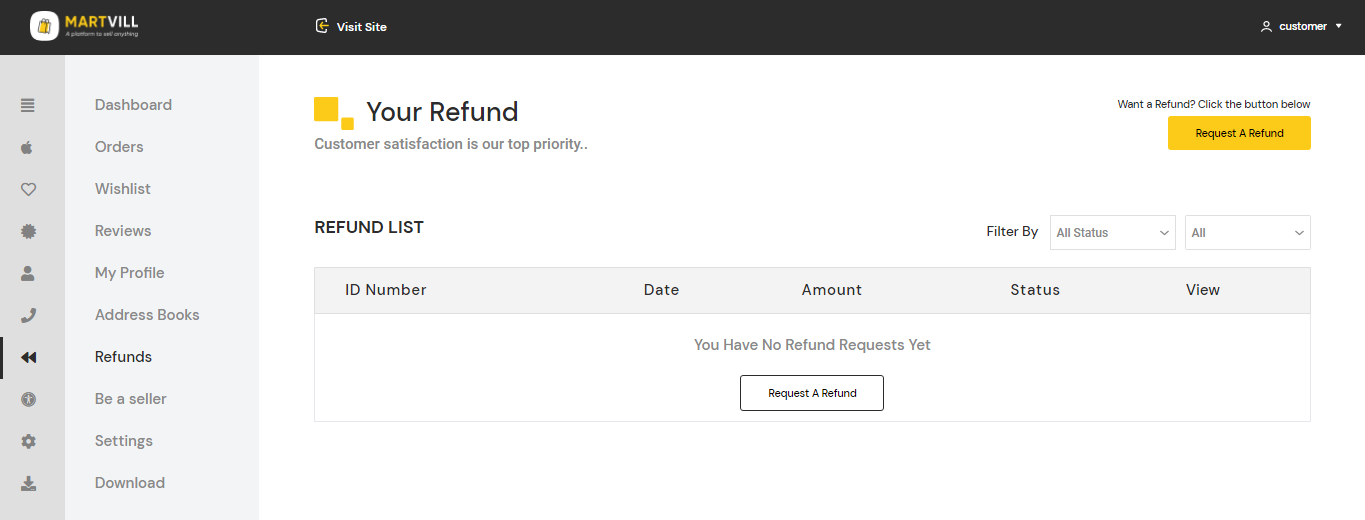
Go to Cool Orca l Homepage > My Account > Customer Dashboard > Refunds . Refund Request page will appear.
Click On Request a Refund from top right corner or from the refund list table.
A Refund request form will appear. Select your order number from the dropdown, then select your product, quantity and reason from the dropdown list. Images can be added but not more 5 images.
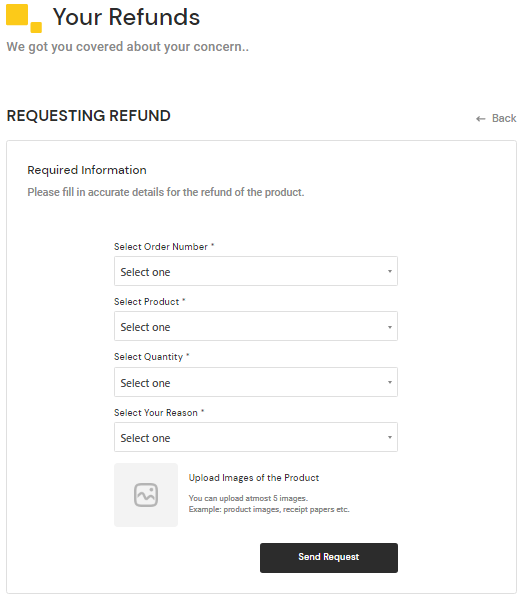
Click on Send Request. Refund request will be sent to the vendor and admin. Email will be sent to the user every time when vendor/admin changed the refund status.
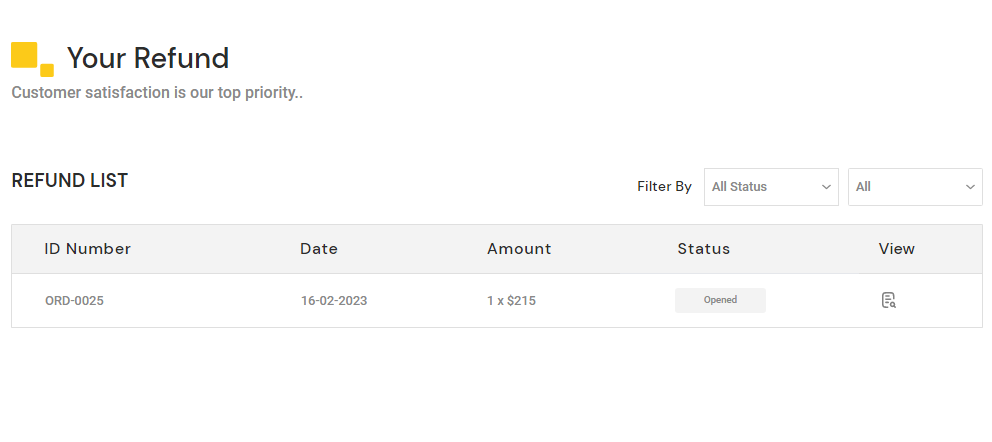
Go To CoolOrca Customer Dashboard > Refunds . Refund list will appear. Click on the view icon from the right side of the list.
Refund details will appear. Refund status, amount, reason and products details with customer's uploaded image for refund will be show in the details.
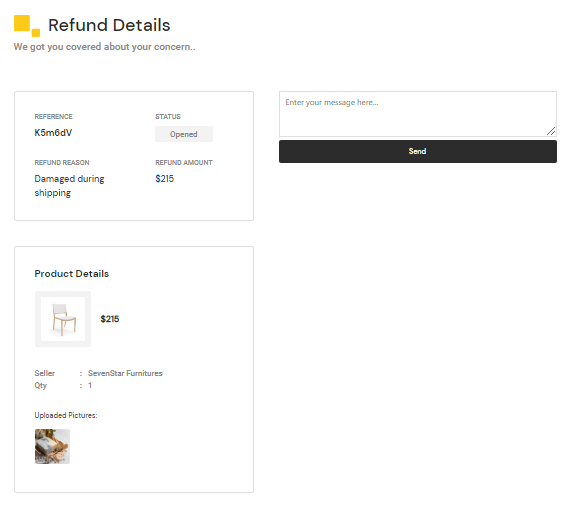
A messaging option is available. So that, Customer can have a conversation with the Seller.
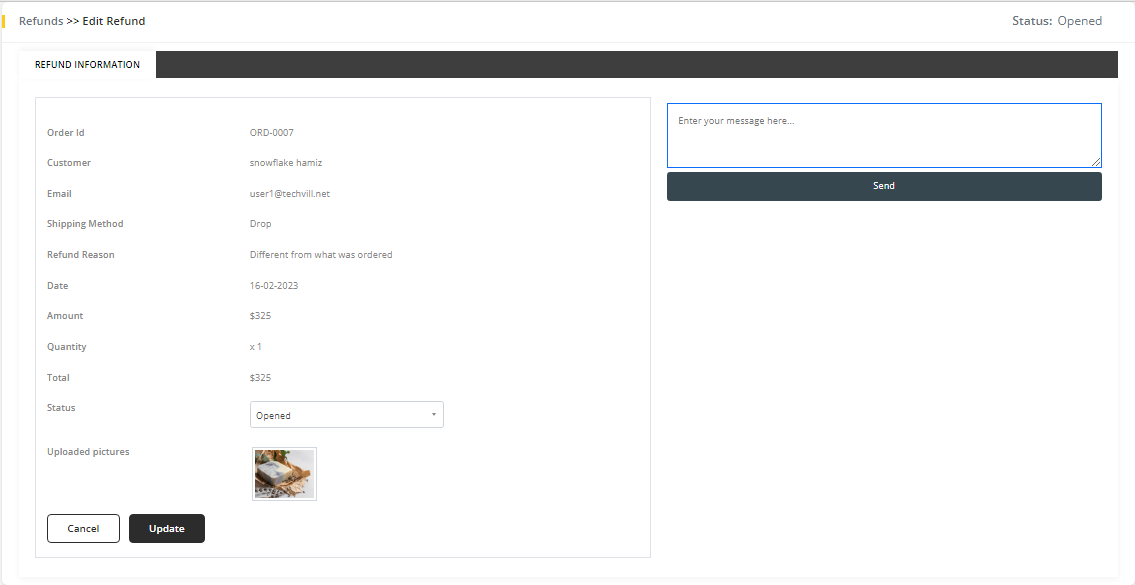
Refund has four statuses. They are
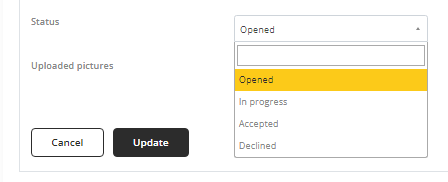
Click on Update to update the change. Refund request can not be deleted.